
MetaTrader 4 includes built-in technical indicators that you can attach directly to a chart. On the desktop platform, you can also install compatible custom MT4 indicators supplied as MQL4 source (.mq4) or compiled program (.ex4) files.
This guide explains how to add, install, configure, modify and remove MT4 indicators on Windows desktop. We assume that MT4 is installed and a chart is open; if not, begin with our guide to MT4 setup, login and charts.
Attaching an indicator does not automatically place trades. Indicators display calculated output; Expert Advisors are a different program type and can perform automated trading operations when configured and permitted. The desktop custom-file workflow also does not apply to the standard MT4 mobile apps.
What Are MT4 Indicators?
MT4 indicators calculate and display information derived from price, tick volume or other supported inputs. Their output may appear over the main price chart, in a separate window or as labels and graphical elements.
MetaTrader 4 provides built-in indicators such as Moving Average, Relative Strength Index and Bollinger Bands. A custom indicator is an additional MQL4 program installed in a desktop terminal. Neither type guarantees a particular trading outcome.
The MetaTrader ecosystem also contains other program types:
| Program type | Main purpose | Can place trades? |
|---|---|---|
| Indicator | Analyses data and displays calculated output | Not by itself |
| Expert Advisor | Automates rules and trading operations when configured and permitted | Yes |
| Script | Runs a defined one-time action | It can, depending on the script and permissions |
An .ex4 extension does not identify the program category by itself. Indicators, Expert Advisors and scripts can all be compiled MQL4 programs, so place each file in the folder intended for its program type.
Before You Add an Indicator in MT4
Installation, attachment, configuration and removal are different actions:
| Action | Purpose | Result |
|---|---|---|
| Install | Make a custom indicator available to MT4 | The terminal can locate its executable |
| Attach | Apply an available indicator to a chart | A chart-specific instance is created |
| Configure | Change that instance’s calculation or appearance | Only the selected instance changes |
| Remove from chart | Detach an instance | Installed files remain available |
| Delete files | Remove a custom indicator from the terminal | It can no longer be attached from those files |
Built-in MT4 indicators require no separate download. Check Insert > Indicators or Navigator > Indicators before obtaining additional files.
For custom indicators, use an identifiable source, review the publisher’s instructions and dependencies, and keep operating-system and antivirus protections enabled. Be cautious if a package requests DLL access or unexplained permissions. Test unfamiliar tools away from important live workflows first; a demo account does not isolate software from the computer running it.
How to Add Built-In Indicators in MT4
You can add a built-in indicator from the Insert menu:
- Select the chart and confirm its symbol and timeframe.
- Open Insert > Indicators.
- Choose the relevant category and indicator.
- Review its available calculation and display settings.
- Select OK.
- Check that the expected plot, label or indicator window appears.
- Press Ctrl+I to open Indicators List and confirm the attachment.
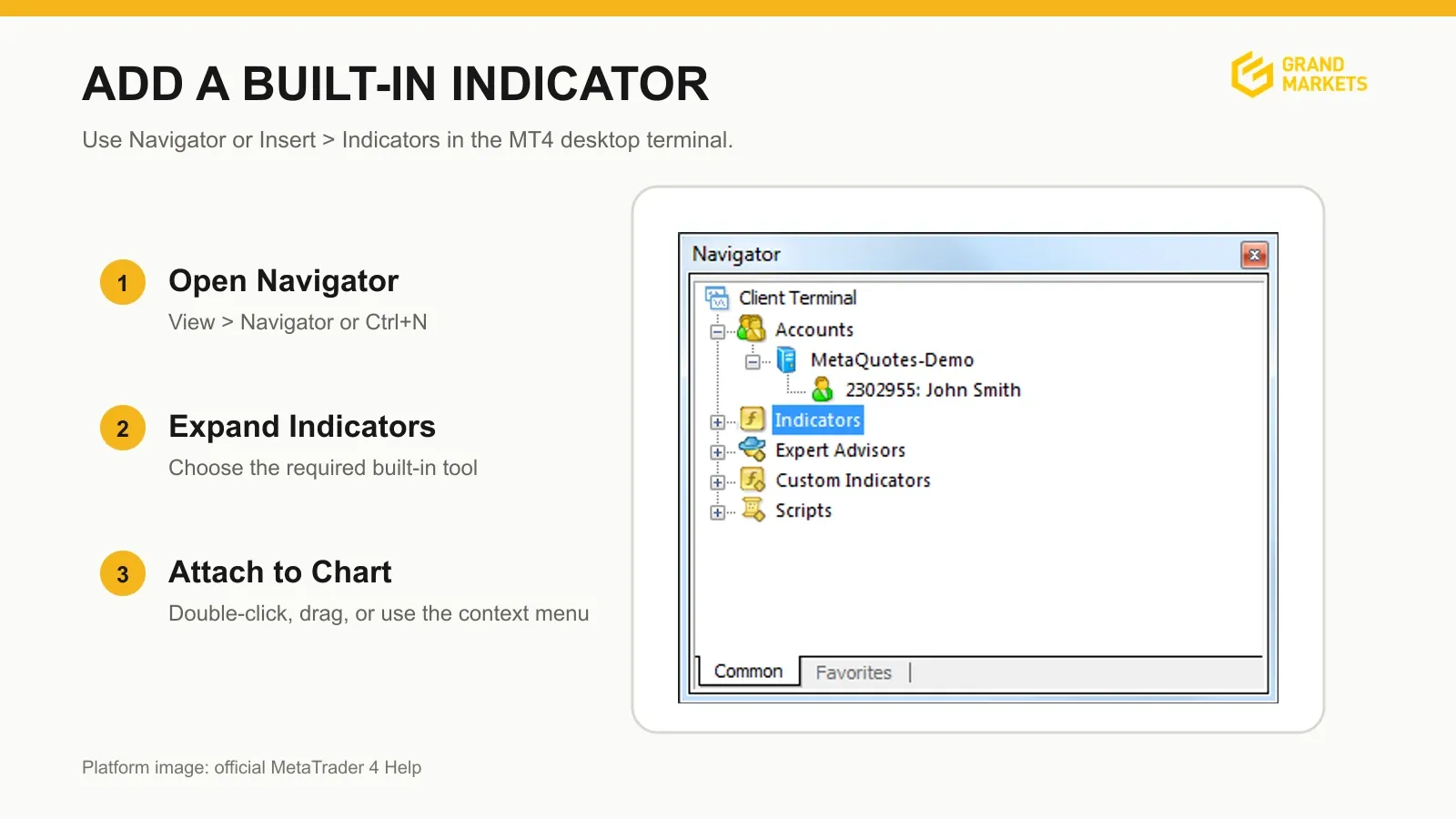
You can also use Navigator:
- Open View > Navigator, or press Ctrl+N.
- Expand Indicators.
- Right-click the indicator and select Attach to Chart.
- Review its properties and select OK.
If the plot does not appear, inspect the attached instance before adding another copy. Duplicate instances can make troubleshooting harder.
How to Install a Custom Indicator in MT4
Use the desktop data folder for an ordinary manually downloaded indicator. Products obtained through Market or a vendor installer may require their own supported installation and activation process.
MT4 indicator file types
| File type | Meaning | What to do |
|---|---|---|
.ex4 |
Compiled MQL4 program | Confirm that it is an indicator, then install it as documented |
.mq4 |
MQL4 source code | Compile it successfully to produce usable .ex4 output |
.mq5 or .ex5 |
MT5 source or executable | Obtain a compatible MT4 version |
.zip |
Compressed archive | Extract and inspect the contents first |
An .ex4 indicator can run without its .mq4 source. Renaming an extension does not compile source code or convert an MT5 program. See our comparison of MT4 and MT5 for the broader platform differences.
Install a manually downloaded indicator
- Open the MT4 terminal in which you want to use the indicator. Separate broker-branded installations can have separate data folders.
- Extract the package and retain its documentation and folder structure.
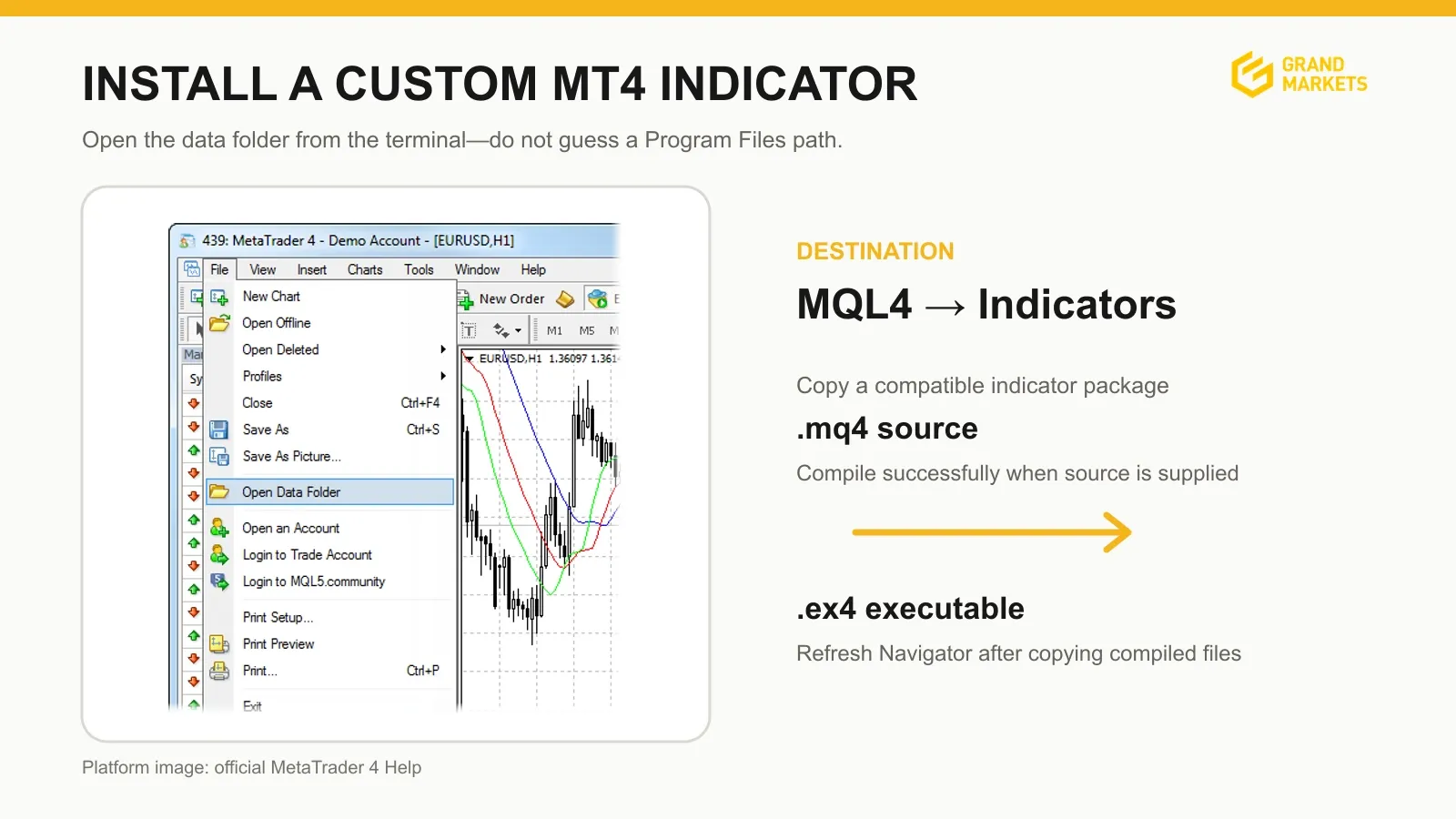
- Select File > Open Data Folder.
- Open MQL4 > Indicators.
- Copy the indicator’s
.ex4,.mq4or documented subfolder into this location. - Place any dependencies in the destinations specified by the publisher.
- Compile the source in MetaEditor if usable compiled output is not supplied.
- Return to Navigator and select Refresh. Restart MT4 if the indicator remains absent or the publisher requires it.
- Attach the indicator to the intended chart and review its settings before selecting OK.
Use the data folder opened from the active terminal rather than guessing a path under Program Files. MetaQuotes’ data-directory documentation separates program installation files from working data.
Some packages use MQL4\Include, MQL4\Libraries, MQL4\Files or MQL4\Images for dependencies. Preserve the documented folder structure; copying every file into MQL4\Indicators can prevent compilation or loading.
To compile an .mq4 file, open it in the MetaEditor associated with the intended MT4 terminal, select Compile, read the results and resolve any errors. Confirm that an .ex4 executable is produced before refreshing Navigator. Renaming .mq4 to .ex4 does not compile the program.
After installation, verify that the program appears in Navigator, its name appears in the chart’s Indicators List and the expected output is visible. Protected purchases may require the original download and activation route.
How to Configure and Use an MT4 Indicator
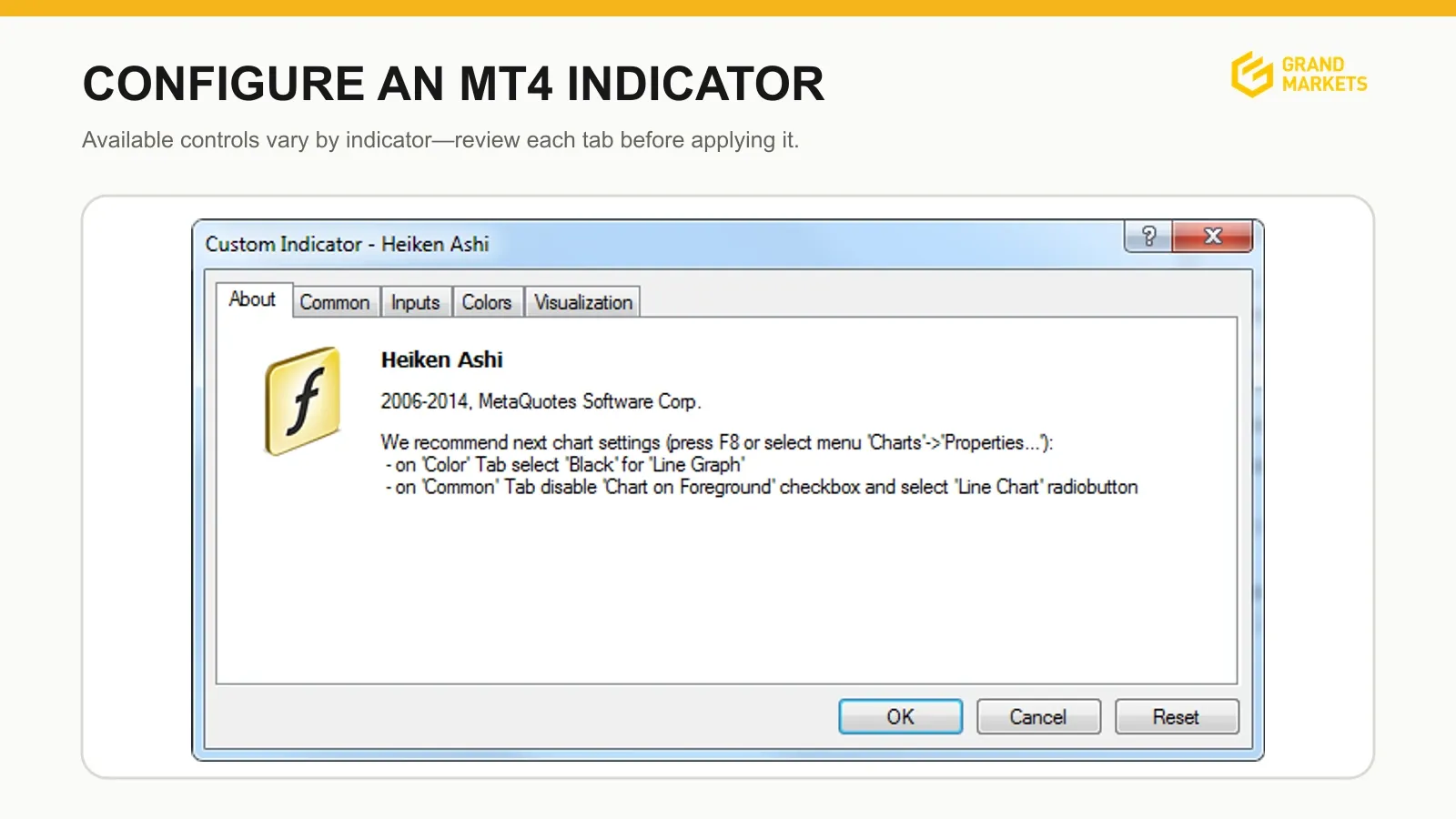
The available controls depend on the selected indicator. Common settings include:
| Setting | What it controls | What to check |
|---|---|---|
| Period | Number of bars included | Relate the lookback to the chart timeframe |
| Applied price | Price series used | Confirm Close, Open or another supported input |
| Method | Calculation variant | Record the selected method where applicable |
| Shift | Display offset | Do not interpret displacement as prediction |
| Inputs | Author-defined parameters | Use the publisher’s definitions |
| Colors and style | Plot appearance | Ensure sufficient contrast with the chart background |
| Levels | Horizontal reference lines | Treat them as display guides, not orders |
| Visualization | Timeframes on which the tool appears | Include the current chart timeframe |
| Alerts | Supported notifications | Confirm exactly what triggers each alert |
A 20-period calculation on H1 uses hourly bars; the same period on D1 uses daily bars. Record the symbol, timeframe and settings together when comparing output. A custom multi-timeframe indicator may calculate from a timeframe other than the visible chart, so check its inputs and documentation.
On standard forex charts, volume is normally broker-feed tick volume rather than consolidated lots traded across the market. MetaQuotes’ volume reference identifies it as tick volume.
Values calculated from the current candle can change before that candle closes. Some custom indicators may also revise historical-looking marks after later prices arrive. Treat alerts as notifications rather than proof that a signal is accurate or suitable.
How to Modify an Indicator
To change an indicator already attached to a chart:
- Activate the relevant chart.
- Press Ctrl+I to open Indicators List.
- Select the correct indicator instance.
- Open Properties or Edit, depending on the interface label.
- Change only the required setting.
- Confirm the change and inspect the chart again.
If several copies are attached, check each instance’s settings before editing it. A saved .tpl template can preserve a chart layout and its attached indicators, but it does not replace missing custom executables, dependencies or licences.
How to Remove Indicators From MT4
Removing an indicator from a chart and deleting a custom indicator’s files are separate operations.
Remove an indicator from a chart
- Activate the chart containing the indicator.
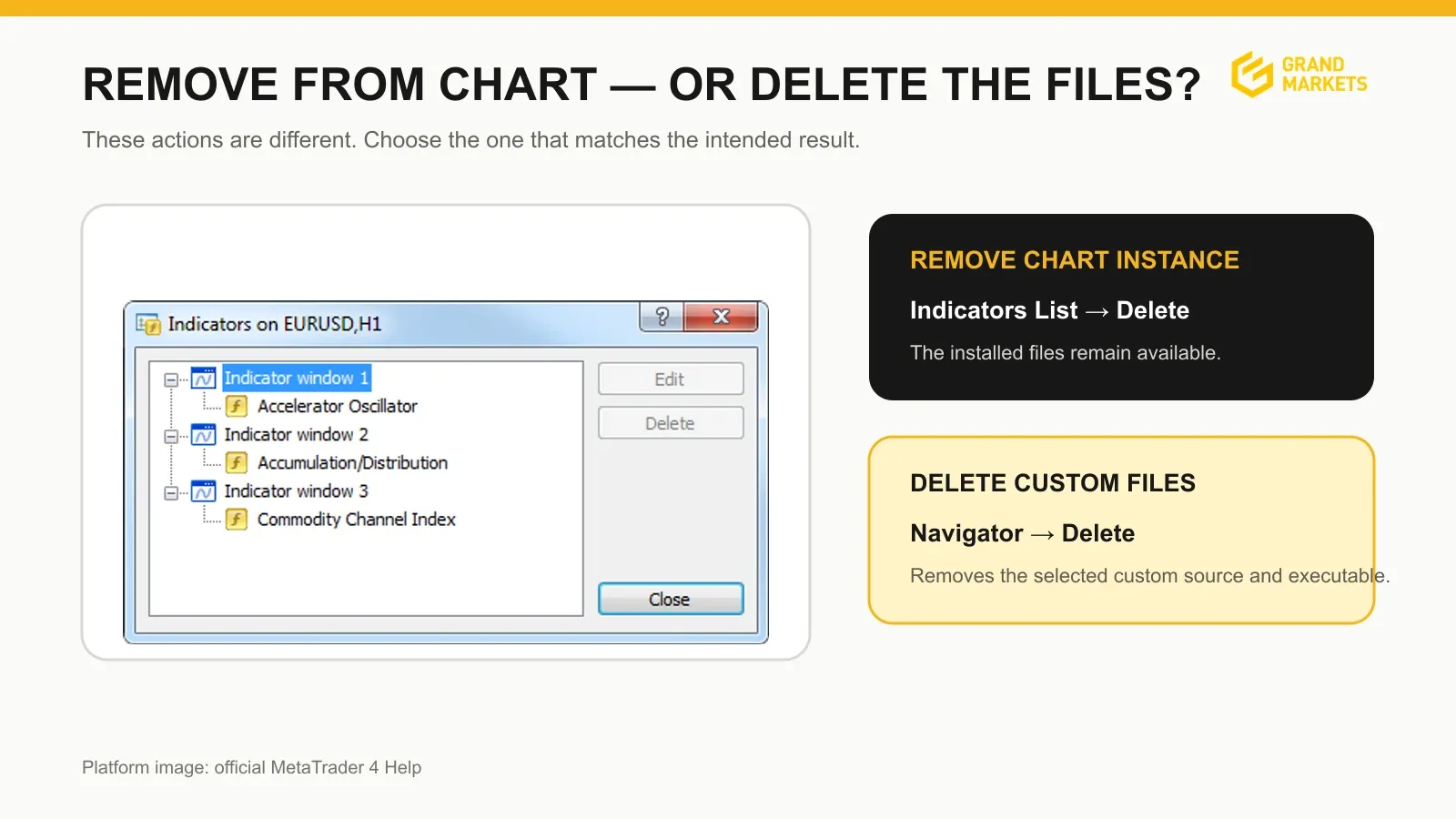
- Press Ctrl+I, or right-click the chart and select Indicators List.
- Select the exact instance.
- Select Delete.
- Close the list and confirm that the intended plot or pane has disappeared.
This detaches only the selected chart instance. It does not uninstall the files or remove copies attached to other charts. If one pane contains several tools, use Indicators List to select the individual entry; Delete Indicator Window can remove more than the intended indicator.
Delete custom indicator files
Delete files only when the custom indicator should no longer remain available in that MT4 terminal:
- Identify its filenames and package dependencies.
- Detach its instances from the relevant charts.
- Select File > Open Data Folder in the correct terminal.
- Open MQL4 > Indicators.
- Close MT4 before changing files.
- Remove the intended
.ex4and, if fully uninstalling the source package, the corresponding.mq4. - Preserve unrelated or shared dependencies.
- Reopen MT4, refresh Navigator and confirm that the indicator is no longer available.
- Update any templates that should no longer include it.
Deleting only the source leaves an existing executable in place. Navigator > Delete is also different from Indicators List > Delete: MetaQuotes documents the Navigator command as removing a custom indicator’s executable and source files, so do not use it merely to clear a chart.
If an indicator returns when a template is loaded, remove it from the chart and save the revised template. A template cannot restore a deleted executable by itself, but a separate MT4 installation may still retain its own copy.
MT4 Indicators on Mobile
The standard MT4 Android and iOS apps include built-in analytical tools, but they do not use the desktop .mq4 and .ex4 installation workflow. A custom indicator installed on Windows does not automatically appear in MT4 Mobile simply because the same trading account is logged in.
| Environment | Built-in tools | Custom-file boundary |
|---|---|---|
| Windows desktop | Supported | Uses the MQL4 data-folder and compilation workflow |
| macOS through MetaQuotes’ installer | Desktop functionality through Wine | Verify package dependencies and file access |
| Windows terminal accessed remotely from a Mac | Follows the Windows terminal | Install files on the remote Windows system |
| Android or iOS app | Uses the app’s supplied indicator list | Does not install desktop .mq4 or .ex4 files |
| Standard MT4 WebTrader | Uses browser-supported analytical tools | Does not provide the desktop custom-file workflow |
When moving to another desktop terminal, install the required custom programs and dependencies, complete any necessary licence activation, copy the required templates and verify each configuration. Logging into the same account does not synchronize local indicator files or templates across devices.
Troubleshooting MT4 Indicators
Check availability first, attachment second and display third. Change one setting at a time so the effect remains identifiable.
| Symptom | What to check | Fix |
|---|---|---|
| Missing from Navigator | Active data folder, extraction and .ex4 availability |
Correct the destination, compile if required, then refresh |
| Appears in another terminal only | Data folder opened by each installation | Install it in the intended terminal |
| Compilation fails | Compiler diagnostics and include files | Obtain complete dependencies or corrected source |
| MT5 file supplied | File extension and publisher’s platform version | Obtain a compatible MT4 version |
| Listed but cannot attach | Licensing, libraries and package requirements | Follow the supported installation route |
| Attached but invisible | Visualization, colors, pane and expected output | Correct display settings before adding another copy |
| Blank or partial output | Price history, symbol, timeframe and inputs | Allow data to load and check supported conditions |
| Values do not update | Incoming quotes and calculation timing | Check the connection and documented update rules |
| Terminal becomes slow | Number of instances and suspect custom tools | Detach the suspected instance and compare behaviour |
| Indicator returns after removal | Loaded template | Remove it and resave the template |
For compilation problems, retain the MetaEditor results. For loading or runtime issues, inspect Terminal > Experts and Terminal > Journal. Before sharing screenshots or logs, remove account identifiers, credentials, balances and personal folder names.
Do not enable DLL imports, AutoTrading or extra network permissions simply because a plot is missing. Diagnose the file, attachment and display stages first. If a downloaded package requests unexplained permissions or produces security warnings, stop and verify its source and requirements.
Use MT4 With Grand Markets
At Grand Markets, we provide access to MetaTrader 4 for desktop and MT4 Mobile. If you already have compatible account credentials, download the required platform and connect using the account’s login and server details. If you are new to Grand Markets, review our current trading accounts first.
Custom indicator compatibility still depends on the file, operating environment, dependencies and publisher requirements. Test platform changes in a demo environment before applying them to an important live workflow.
FAQs
How do I add an indicator to MT4?
Select the chart, then use Insert > Indicators or open Navigator > Indicators, choose the indicator, review its settings and select OK.
How do I install a custom indicator in MT4?
On MT4 desktop, select File > Open Data Folder, open MQL4 > Indicators, copy the compatible files into that folder, compile .mq4 source if required and refresh Navigator.
Where are MT4 indicator files stored?
Custom indicator files are stored in the active terminal’s MQL4 > Indicators data folder. Open the correct location through File > Open Data Folder rather than guessing the installation path.
How do I remove an indicator from MT4?
Press Ctrl+I, select the indicator in Indicators List and choose Delete. This removes the chart instance but leaves its installed files available.
Can I use an MT5 indicator in MT4?
Not automatically. MT5 .mq5 and .ex5 files are not MT4 programs. Obtain a compatible MQL4 version; renaming the extension does not convert it.
Can I install custom MT4 indicators on mobile?
The standard MT4 Android and iOS apps provide built-in indicators but do not use the desktop .mq4 or .ex4 installation workflow.
Risk note: Indicators are analytical tools, not guarantees of accuracy or trading results. Test settings and unfamiliar custom software carefully, and consider whether trading with leveraged products is appropriate for your circumstances.

Disclaimer:
This content does not constitute any offer, solicitation or advice. You should always seek independent professional advice before making any investment decision. Please note that Grand Markets may restrict or prohibit some or all services to users from restricted regions. Please read the User Agreement for more information.