
To get started with MT4 on Windows, download the desktop terminal, sign in with the account number, password and exact server supplied by your broker, open a chart, and practise market and pending orders on a demo account. This MT4 tutorial for beginners covers the complete setup, login, chart and order workflow without applying desktop instructions to the mobile apps.
MetaTrader 4 is the trading platform; it is not the broker account itself. Your broker supplies the compatible MT4 account, server, instruments, permissions and trading conditions. Installing the software does not open, approve or fund a live account.
How to use MetaTrader 4 in five steps
- Download and install the MT4 desktop terminal from an official source.
- Obtain a compatible demo account number, trading password and exact server.
- Use File > Login to Trade Account and verify the connection.
- Open a symbol chart and check its Bid, Ask, spread and contract specification.
- Practise one market order and one pending order on demo, then verify the result in Terminal > Trade and Account History.
Grand Markets users can download MT4 for Windows and connect an MT4-compatible account using the credentials and server assigned to that account.
MT4 setup and login guide: Prepare and install
Obtain the account details
Prepare these items before starting MT4 platform setup:
| Required item | What to confirm |
|---|---|
| Platform | The trading account was created for MT4, not MT5 |
| Account number | Use the trading-account number, not a website email address |
| Trading password | Obtain the password that permits trading |
| Server | Record the exact server assigned to the account |
| Account environment | Confirm demo or live against the broker’s account record |
| Device | Use a compatible operating system with current security updates |
Use a demo account for the procedures below. Demo accounts use virtual funds. Their execution and costs may differ from live conditions.
Account availability, eligible products, legal entity and applicable terms can vary by country. If you are accessing Grand Markets from markets such as Indonesia, Vietnam, the UAE, South Africa or other supported regions, confirm the entity serving your account and the conditions shown during registration before opening a live account. Website or platform availability alone does not establish local eligibility or authorization. Review the applicable client agreement and account terms for your location.
Install on Windows
- Open the official product page linked above. Avoid unsolicited installers, unofficial download mirrors, and similarly spelled domains.
- Check the current operating-system requirements. The reviewed MetaQuotes documentation lists Windows 10 and Windows 11.
- Select the Windows download. Confirm that the downloaded application identifies itself as MetaTrader 4.
- Run the installer and follow its license and installation prompts.
- Launch the terminal.
- Stop if the application is MT5. Obtain the platform that matches your account.
Installer filenames and installation directories can change. Confirm that the downloaded application identifies itself as MetaTrader 4 and stop if it opens or installs MT5 instead.
Generic MT4 supports File > Open an Account for compatible demo-registration flows. A broker can instead require demo registration through its website or account area, so follow the current instructions shown by Grand Markets rather than assuming the generic terminal flow is available.
Check other devices separately
| Device | Required check |
|---|---|
| macOS | Follow the current official Mac installation instructions. The documented installer uses Wine and lists macOS Big Sur or later |
| Android | Check local store availability, device compatibility, and the MetaQuotes publisher identity |
| iPhone or iPad | Check local store availability and current compatibility requirements |
| Browser | Do not assume browser access is included with the desktop setup; confirm current browser-platform availability separately |
Use the official mobile download options for device-specific access. Mobile uses Quotes, Charts, Trade, and History views. Desktop templates, profiles, and local automation should not be assumed to transfer to mobile.
Complete MT4 account login and verify access
Enter the matching credentials
An MT4 account login requires three matching details: account number, password, and exact server.
- Select File > Login to Trade Account.
- Enter the trading-account number in Login.
- Enter the trading password in Password.
- Select the exact server supplied for that account.
- Submit the login request.
Do not guess server names. Similar names can identify different account environments.
A client-portal password controls website access. It is not automatically the trading password. An investor password permits read-only access where supported. It can display account information without permitting orders.
MetaQuotes documents these distinctions in its authorization instructions.
Verify the connection and account
Complete these checks before opening an order window:
- Compare the selected account number with the broker’s account record.
- Confirm that the account is a demo account.
- Inspect the terminal’s connection status.
- Open View > Terminal, then select Journal.
- Check for authorization or connection errors.
- Confirm that Market Watch receives quotes for a symbol currently in session.
A stationary chart during a closed session does not establish connection failure. Moving quotes do not establish trading permission.
After switching accounts through Navigator or the login dialog, repeat the identity check. Chart appearance alone cannot distinguish demo from live.
Protect and recover access
- Do not save passwords on shared devices.
- Protect the operating-system account.
- Never send passwords, one-time codes, or recovery codes to support.
- Redact identifying information from screenshots.
- Do not treat an authenticated password-change option as a forgotten-password recovery procedure.
If the account number, server or recovery method is missing, contact Grand Markets. Server names and password-recovery steps are account-specific; use only the details issued for the account.
Configure the workspace and MT4 charts
Open the working panels
Use this workspace for the MetaTrader 4 tutorial:
| Panel | Menu path | Task |
|---|---|---|
| Market Watch | View > Market Watch | Find symbols, inspect Bid/Ask quotes, and open specifications |
| Navigator | View > Navigator | Check accounts and access indicators |
| Chart window | Right-click a Market Watch symbol > Chart Window | Display the selected symbol’s price history |
| Terminal | View > Terminal | Review Trade, Account History, and Journal |
Keep the Terminal’s Trade tab visible during order practice. It displays open positions and pending orders.
Inspect the symbol specification
A symbol identifies an instrument available through the connected server. Prefixes and suffixes can distinguish contracts with different conditions.
- Right-click inside Market Watch.
- Select Symbols to inspect groups, or Show All to reveal symbols exposed by the server.
- Select the exact symbol required.
- Right-click it and select Specification.
- Check contract size, volume limits, volume step, price precision, stops level, swaps, and available session information.
- Select Chart Window.
Showing a symbol does not grant trading permission. It can remain unavailable, close-only, or outside its trading session.
Set chart type and timeframe
- Select the chart.
- Choose candlesticks, bars, or a line from the chart toolbar or Charts menu.
- Select a timeframe.
- Adjust zoom until prices and candles are readable.
- Keep the symbol name and timeframe visible.
Standard MT4 charts offer M1, M5, M15, M30, H1, H4, D1, W1, and MN timeframes. These represent intervals from one minute to one month. They do not determine how long a position must remain open.
Candlesticks and bars show open, high, low, and close prices. A line chart emphasizes successive closing prices.
Check Bid, Ask, and spread
| Price term | Operational meaning |
|---|---|
| Bid | Normally used to open a sell and close a buy |
| Ask | Normally used to open a buy and close a sell |
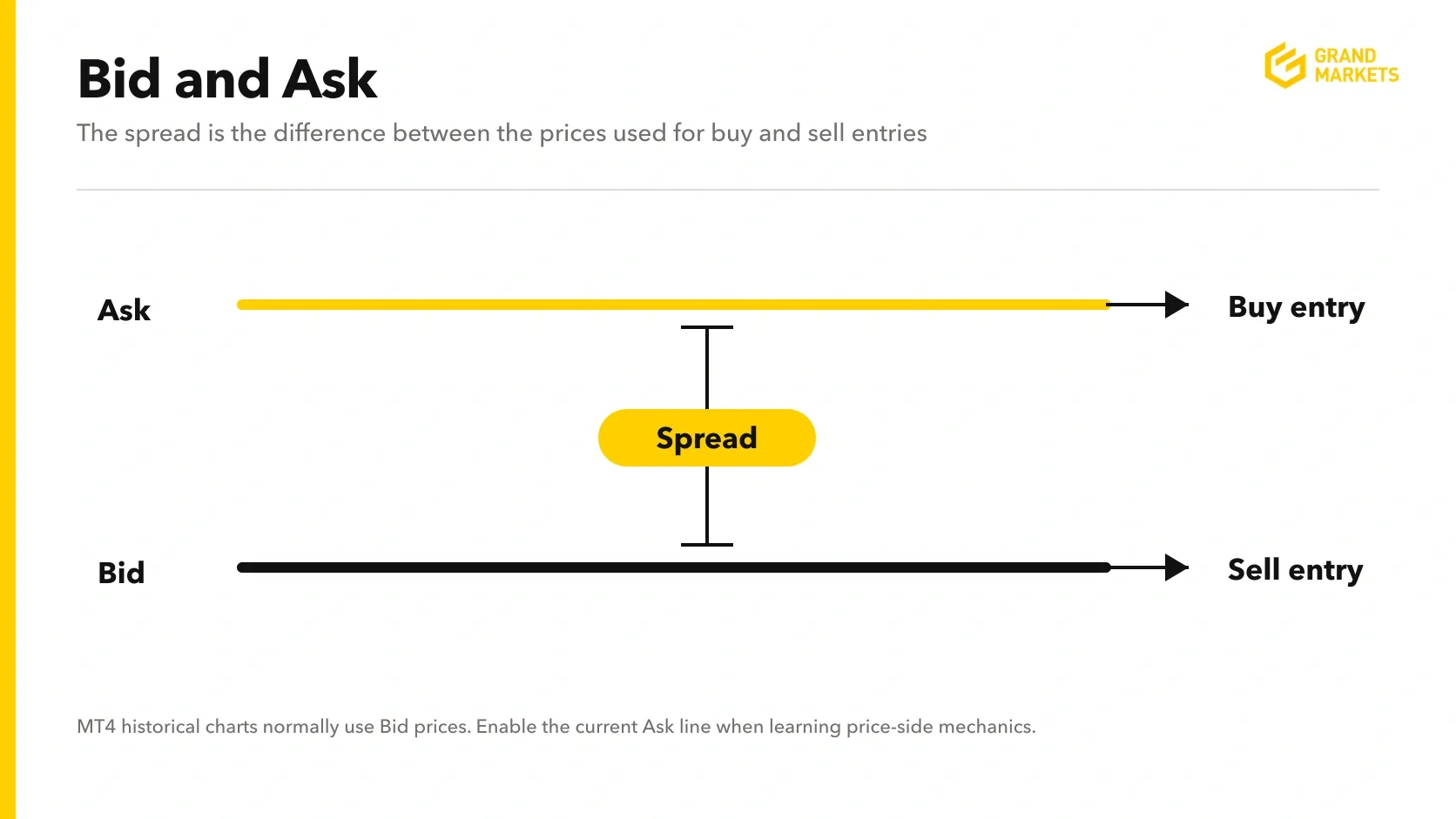
| Spread | Ask minus Bid |
MT4 historical charts normally use Bid prices. Enable Show Ask line in the chart properties when learning price-side mechanics. This adds the current Ask line; it does not convert historical candles into Ask candles.
A buy entry can appear above the visible chart price because buying uses Ask. A sell position’s protective exit normally uses Ask, so its trigger can differ from what the Bid chart appears to show.
Save a controlled workspace
- Turn off Auto Scroll when examining older history.
- Use Chart Shift to leave space beside the latest candle.
- Add indicators through Navigator or the Insert menu only when their settings are understood.
- Treat drawing tools as annotations. A horizontal line does not place an order.
- Save a template for one chart’s appearance and attached tools.
- Save a profile for a group of charts and their arrangement.
Use a plain template containing only understood settings. Do not import unknown templates that could attach automated tools.
Do not assume chart time matches your local time. Confirm the platform’s current server time and any daylight-saving adjustment rather than converting candles using an assumed time zone.
How to Place Orders on MT4 Using a Demo Account
Select the correct order type
An order is an instruction submitted to the server. An open position is an executed trade. A pending order waits for its entry condition and is not yet an open position.
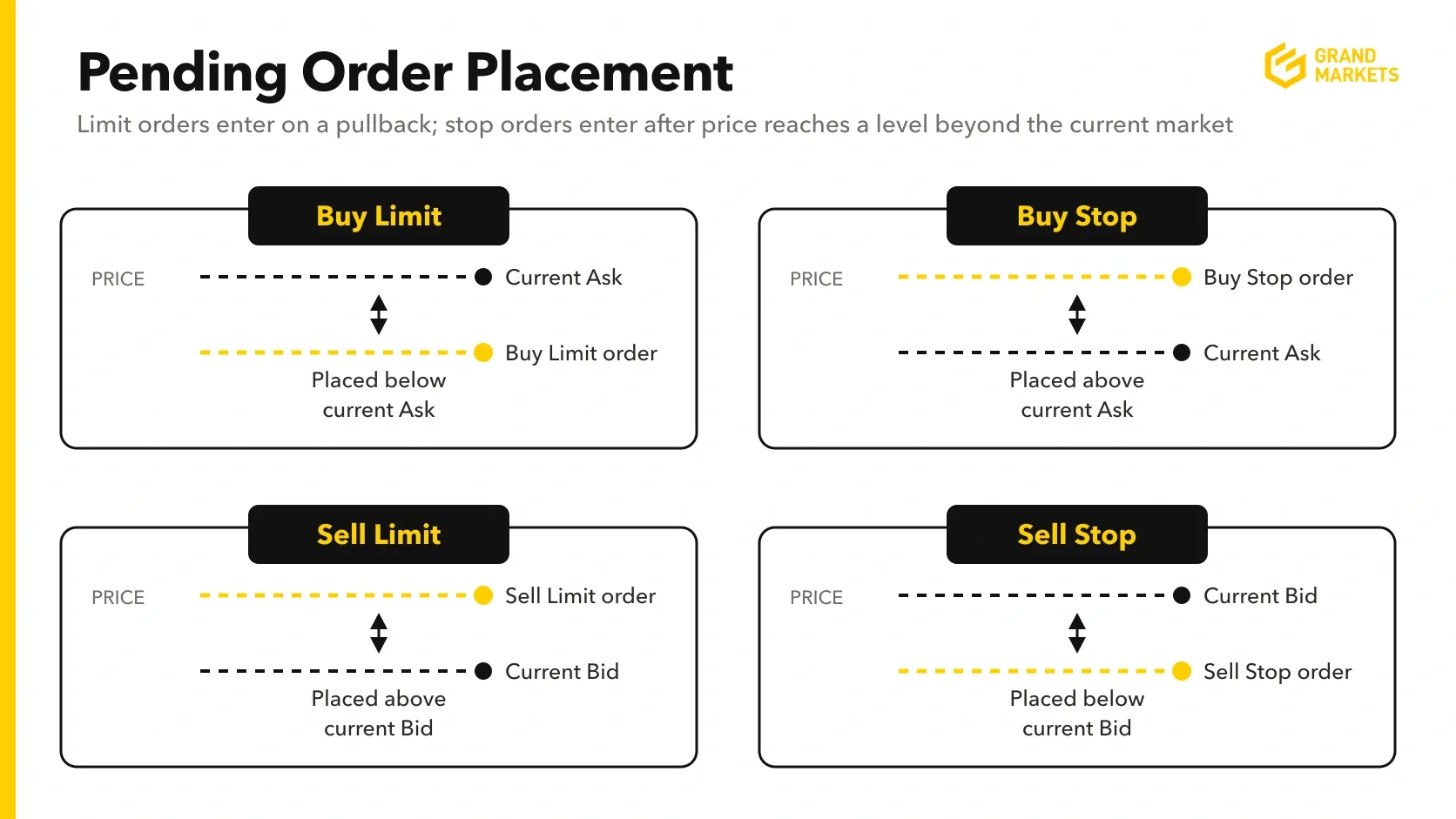
Standard MT4 has four pending-order types, as specified in the official order-type documentation.
| Instruction | Entry relationship |
|---|---|
| Market Buy | Request a buy now, normally using Ask |
| Market Sell | Request a sell now, normally using Bid |
| Buy Limit | Buy at a specified level below current Ask |
| Sell Limit | Sell at a specified level above current Bid |
| Buy Stop | Buy after Ask reaches a higher specified level |
| Sell Stop | Sell after Bid reaches a lower specified level |
A Buy Stop opens a position. A Stop Loss requests an exit from a position when its adverse trigger condition is reached.
Execution can differ from the displayed or requested price. Do not treat an order submission as proof of acceptance or execution.
Check volume, margin, and costs
Before submitting MT4 basic orders, inspect:
- Volume: The number of lots requested. Contract size determines what one lot represents.
- Volume step: The permitted increment between order sizes.
- Margin: Collateral required under the account’s rules.
- Equity: Account value including floating results and applicable adjustments.
- Free margin: Broadly, equity minus used margin.
- Costs: Spread, commission, and applicable overnight charges or credits.
Do not assume 0.01 lot represents the same exposure across instruments. Review the account conditions and trading fees and commissions.
Enter protective levels
A Stop Loss requests closure at an adverse trigger level. A Take Profit requests closure at a target trigger level.
Check each level against:
- The intended direction.
- The relevant Bid or Ask price.
- The symbol’s price precision.
- The required minimum distance.
- Current placement and modification restrictions.
The specification’s stops level is expressed in points. Do not treat points and pips as interchangeable.
Protective orders do not guarantee the requested fill price. Gaps and slippage can change execution. If protection is rejected, stop and establish the supported procedure. Do not remove protection merely to obtain acceptance.
Submit a demo market order
- Confirm the demo account, symbol, session, and connection.
- Press F9, or select Tools > New Order.
- Check the Symbol field.
- Enter a permitted Volume.
- Enter valid Stop Loss and Take Profit levels as supported.
- Review the execution type and direction.
- Select the appropriate Buy or Sell control once.
- Read the server response.
- Open Terminal > Trade.
- Verify the actual fill price, volume, and accepted protective levels.
Button labels vary with execution mode. Market Execution and Instant Execution are distinct modes; do not use the terms interchangeably.
If the result is unclear, inspect Trade, Account History, and Journal before retrying. Repeated submission can create duplicate exposure.
Submit a demo pending order
- Open New Order.
- Select Pending Order.
- Choose one of the four standard types.
- Enter the volume and entry price.
- Enter valid protective levels.
- Add expiration only if supported.
- Submit once.
- Confirm that the order appears as pending in Terminal > Trade.
For a mechanical example, assume a fictional symbol has a current Ask of 1.10020. A Buy Limit at 1.09900 is below that Ask. Acceptance still depends on the symbol’s distance and trading rules. These figures are not recommended entry levels.
Modify, cancel, and close the exercise
Modify or cancel a pending order
- Locate the pending order in Terminal > Trade.
- Right-click it and select Modify or Delete Order.
- Change supported entry, protective, or expiration fields.
- Select Modify and confirm acceptance.
To cancel, use Delete in the same dialog. Verify that the order is removed from Trade and check its history.
Do not assume pending volume can be edited in place. Changing volume may require cancellation and replacement. Confirm cancellation first because the original order could trigger during the process.
Modify an open position
- Right-click the position in Terminal > Trade.
- Select Modify or Delete Order.
- Enter valid Stop Loss or Take Profit values.
- Submit the modification.
- Verify the accepted values in the position record.
Close the correct position
- Right-click the actual position.
- Select Close Order.
- Check the ticket, symbol, and closing volume.
- Use the dialog’s Close control.
- Confirm the result in Trade and Account History.
Do not place a new opposite order as a substitute for closing. It can create a separate opposite position.
For a partial close, enter a smaller closing volume where permitted. Both the closed amount and remaining position must satisfy applicable volume rules.
If a closed trade is missing, open Terminal > Account History and select an appropriate date range or All History.
Check what remains active after exit
Closing MT4 does not close positions or cancel accepted pending orders. Server-side instructions remain subject to their validity and broker rules.
Trailing-stop updates run in the desktop terminal. They stop when the terminal is off or disconnected. A previously accepted Stop Loss remains on the server, but enabling trailing does not necessarily place an immediate Stop Loss.
Keep one-click trading disabled while learning how to use MT4. It removes confirmation steps for supported actions.
Troubleshoot login, charts, and order errors
Apply the matching check
| Symptom | Checks and action |
|---|---|
| Invalid account or failed authorization | Confirm MT4 platform, account number, exact server, password, and account status |
| Connected but unable to trade | Check for investor access, closed sessions, and account or symbol restrictions |
| No connection | Check internet access, assigned server, Journal, and current official build. Do not disable security protections |
| Missing symbol | Use Symbols or Show All, check suffixes, and confirm account availability |
| Chart not updating | Check the trading session, Market Watch quotes, and connection. Reopen the active symbol’s chart |
| Market is closed | Check the instrument’s current session and holiday schedule |
| Trade is disabled | Confirm trading-password access and account permissions. The AutoTrading switch is not a general fix for manual orders |
| Invalid trade volume | Recheck minimum, maximum, increment, and any partial-close remainder |
| Invalid stops | Recheck direction, Bid/Ask reference, precision, and minimum distance |
| Not enough money | Review free margin and requested exposure. Reconsider the order; depositing more is not the default remedy |
| Requote or Off quotes | Inspect Trade and History before retrying. Review the current price, session, and connection |
| Expired or disabled account | Ask the broker to confirm status and available recovery steps |
Do not increase exposure solely to satisfy a minimum-volume requirement. Cancel the exercise if the required size exceeds the exposure you intended.
Escalate unresolved problems
Use the official contact destination if correct credentials still fail, specifications conflict with server responses, or a live position cannot be managed.
Provide:
- Exact error wording.
- Event date, time, and time zone.
- Platform, device, and build.
- Symbol and affected action.
- Redacted Journal information or screenshots.
Never include passwords or verification codes. Ask support to confirm account-specific rules instead of applying another broker’s instructions.
MT4 Beginner FAQs
How do I log into MT4?
Use File > Login to Trade Account, then enter the broker-issued account number, trading password and exact server assigned to that account.
How do I place a trade on MT4?
Choose the correct symbol, open New Order, verify the volume and order settings, then submit the appropriate Buy or Sell instruction. Confirm the result in Terminal > Trade.
What is the difference between MT4 and MT5?
MT4 and MT5 are different MetaTrader platforms with different account compatibility, features and automation environments. Use the platform for which the broker created the trading account.
How do I place a pending order on MT4?
Open New Order > Pending Order, then choose Buy Limit, Sell Limit, Buy Stop or Sell Stop according to the intended entry relationship. Verify the price, volume and protective settings before submitting the order.
Can I use Expert Advisors on MT4?
Yes. MT4 supports Expert Advisors built for the MT4/MQL4 environment, subject to platform and account compatibility, permissions and the EA’s own requirements.
Why does MT4 say “not enough money” or “market closed”?
“Not enough money” usually relates to available margin compared with the requested exposure. “Market closed” usually means the selected instrument is outside its current trading session or is otherwise unavailable.
Continue With MT4 at Grand Markets
You can download MT4 for Windows through Grand Markets or use the separate MT4 mobile route where needed. Create or connect an MT4-compatible Grand Markets account, then use the exact login, password and server assigned to that account. Before live trading, verify the current account, instrument, pricing and regional conditions shown for your setup.
Risk notice: These procedures explain software operation, not investment decisions. Leveraged forex and CFD trading can cause substantial losses. Demo results do not predict live results. Check applicable eligibility, costs, execution rules, and risks before using a live account.

Disclaimer:
This content does not constitute any offer, solicitation or advice. You should always seek independent professional advice before making any investment decision. Please note that Grand Markets may restrict or prohibit some or all services to users from restricted regions. Please read the User Agreement for more information.