
MetaTrader 5 is a trading platform for viewing prices and charts, sending orders and managing positions. This beginner guide explains how to use MetaTrader 5 on desktop: install or open the terminal, log in with the correct server, find an instrument, adjust a chart, place a basic order and review the result.
The instructions focus on the Windows desktop terminal because its menus provide the clearest starting point. The macOS version follows a similar workflow, but installation details can differ. Mobile menus are different and are mentioned only where necessary.
What you need before using MetaTrader 5
MT5 is the platform, not the trading account itself. Installing it does not automatically create an account or supply trading credentials. Before starting, have the following information ready:
- your trading account or login number;
- the trading password for that account;
- the exact server assigned to the account;
- confirmation of whether the account is live or demo;
- a reliable internet connection;
- the appropriate MT5 installer for your device.
The login, password and server normally come from the provider that created the trading account. Do not guess a server name or assume that credentials from another platform will work. An MT4 account cannot simply be used as an MT5 login.
An MQL5.community account is also separate from a trading account. It is used for MetaQuotes community services and is not a substitute for the broker-issued login and server details needed to access a trading account.
If you do not yet have Grand Markets account credentials, create a Grand Markets account first. Once your account details and server information are available, you can use them to connect MT5.
Download and open MT5
Grand Markets provides verified Windows and macOS routes on its MetaTrader 5 desktop page. Use the version intended for your operating system and follow the installation prompts.
On Windows, the usual setup sequence is:
- Download the installer from the verified platform page.
- Open the installer and review the displayed terms and installation location.
- Complete the installation and launch MetaTrader 5.
- Allow the platform to complete legitimate updates if prompted.
- Connect the trading account using the credentials and server supplied for that account.
MetaQuotes explains that its Windows setup uses a web installer that retrieves the required platform components. The current official MT5 installation guide also covers advanced installation options.
On macOS, use the current package supplied through the verified platform route. Do not assume that old installation instructions remain current after an operating-system update. This guide uses Windows menu names, although the core login, chart and order concepts remain similar.
How to log into MT5
To connect an existing trading account in the Windows terminal:
- Select File > Login to Trade Account.
- Enter the account number in the Login field.
- Enter the trading password in Password.
- Select the exact assigned server in Server.
- Choose whether to save the password only if the device is private and suitably secured.
- Submit the form and check the connection status.
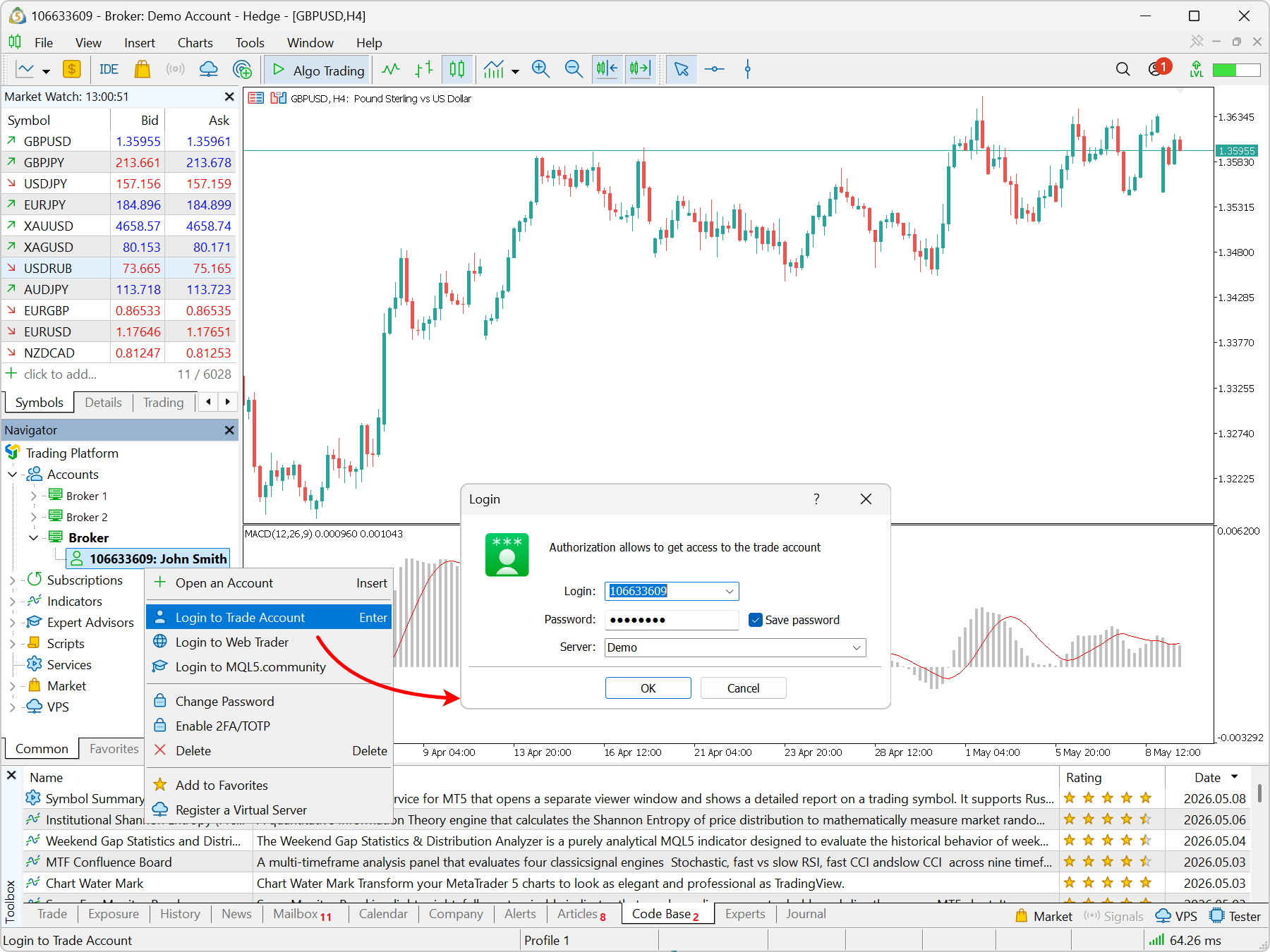
The official MT5 login window. Use the credentials and server supplied for your own account; the values shown in the documentation image are examples.
The official MetaTrader 5 authorization guide identifies Login, Password and Server as the core connection fields. It also distinguishes full trading access from investor access. An investor password can allow account viewing without permission to trade.
Confirm that the correct account is connected
A moving chart alone does not prove that the intended account is active. After logging in, check:
- the account number and server shown in Navigator;
- whether the account is marked as live or demo;
- the connection indicator in the terminal status area;
- whether current quotes are arriving during the instrument’s trading session;
- the Journal tab for any connection or authorization messages.
If the assigned server is not visible, use the broker-search and existing-account options available through File > Open an Account, or request the correct details through official support. Do not select a similarly named server merely because it appears in the list.
Understand the main MT5 workspace
You do not need to learn every menu before placing a practice order. Begin with five areas:
| Workspace area | What a beginner uses it for |
|---|---|
| Market Watch | Find available instruments and view current Bid and Ask quotes. |
| Navigator | View trading accounts and access platform tools. |
| Chart area | Examine the selected instrument across different timeframes and chart views. |
| Toolbox | View positions, pending orders, account history and platform messages. |
| Toolbars | Open a new order, change timeframe and adjust the visible chart. |
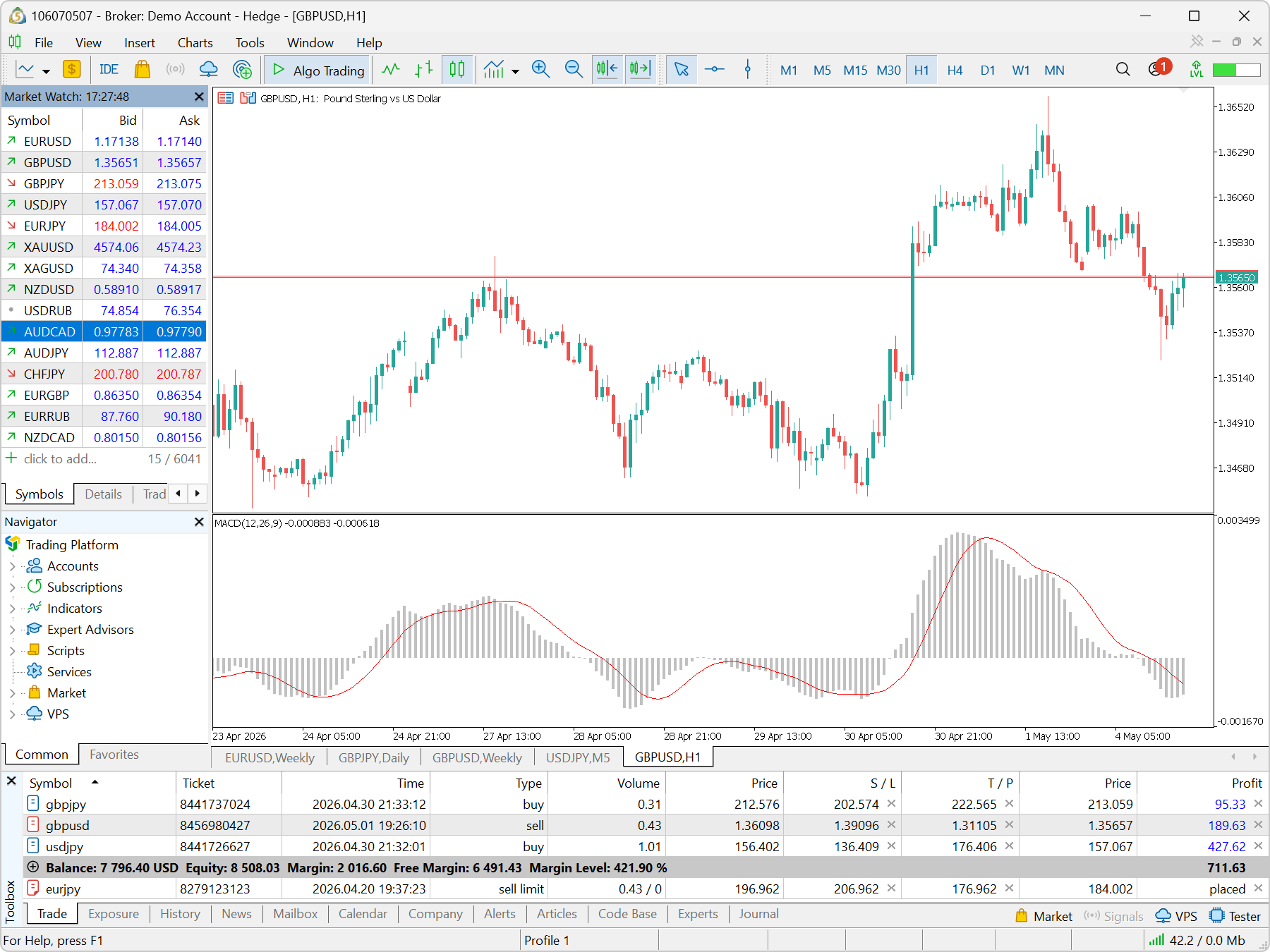
The current desktop workspace shown in MetaTrader’s official documentation. Available symbols, values and panel contents depend on the connected account.
If a panel is missing, the View menu can reopen key windows. Common Windows shortcuts include Ctrl+M for Market Watch, Ctrl+N for Navigator and Ctrl+T for Toolbox. The official interface guide provides the complete platform layout.
Find an instrument in Market Watch
Market Watch displays the symbols currently visible for the connected account. Symbol availability and naming depend on the provider and account, so the list may not match another user’s platform.
To find and open an instrument:
- Open View > Market Watch or press Ctrl+M.
- Look for the required symbol in the Symbols tab.
- If it is not visible, right-click inside Market Watch and open Symbols to review the instruments available for that account.
- Select the exact symbol and review Specification from its context menu.
- Right-click the symbol and choose Chart Window.
The specification can contain contract size, permitted volume, volume step, trading sessions, stop levels and execution details. These conditions matter when completing an order ticket. Do not assume that two similarly named symbols have identical specifications.
The official Market Watch documentation explains how symbols, quotes, specifications and trading commands are organized.
Open and adjust an MT5 chart
Once a chart is open, confirm the symbol and timeframe shown in the chart header. Then adjust only the controls needed to make the view understandable.
Change the timeframe
Use the timeframe toolbar or the chart’s timeframe menu. MT5 supports intervals ranging from minutes to months, but availability in the toolbar may depend on the current layout.
A timeframe controls how much time each bar or candle represents. It does not control how long an order remains open. For example, an H1 candle represents one hour of price information; it does not close a position after one hour.
Change the chart view and zoom
The desktop terminal provides bar, candlestick and line views. On Windows, common shortcuts are:
- Alt+1 for bars;
- Alt+2 for candlesticks;
- Alt+3 for a line chart.
Use the toolbar’s zoom controls to show more or less detail. Scroll left to inspect older data. If Auto Scroll is enabled, new price updates return the chart toward the latest bar. Chart Shift adds space to the right of the current price area.
Right-click the chart and open Properties, or press F8, to adjust colors and basic display options. This tutorial does not cover indicator setup in depth; indicators are a separate workflow and are not necessary for learning how to open, read and navigate a chart.
Understand the chart price
Depending on the instrument, an MT5 chart may be based on Bid or Last prices. A conventional market buy uses the Ask side, while a conventional market sell uses the Bid side. This helps explain why the execution price may differ from the main line or candle visible on the chart.
Where available, enable Bid and Ask price lines in chart properties to see the current separation. Displaying those lines improves visibility but does not change the spread or execution rules.
Open the New Order window
There are several ways to open an MT5 order ticket on desktop:
- select a symbol in Market Watch, right-click and choose New Order;
- select Tools > New Order;
- use the New Order toolbar button;
- press F9.
Before submitting anything, verify that the ticket shows the intended symbol and account. The fields available can vary with the instrument, execution mode and provider configuration.
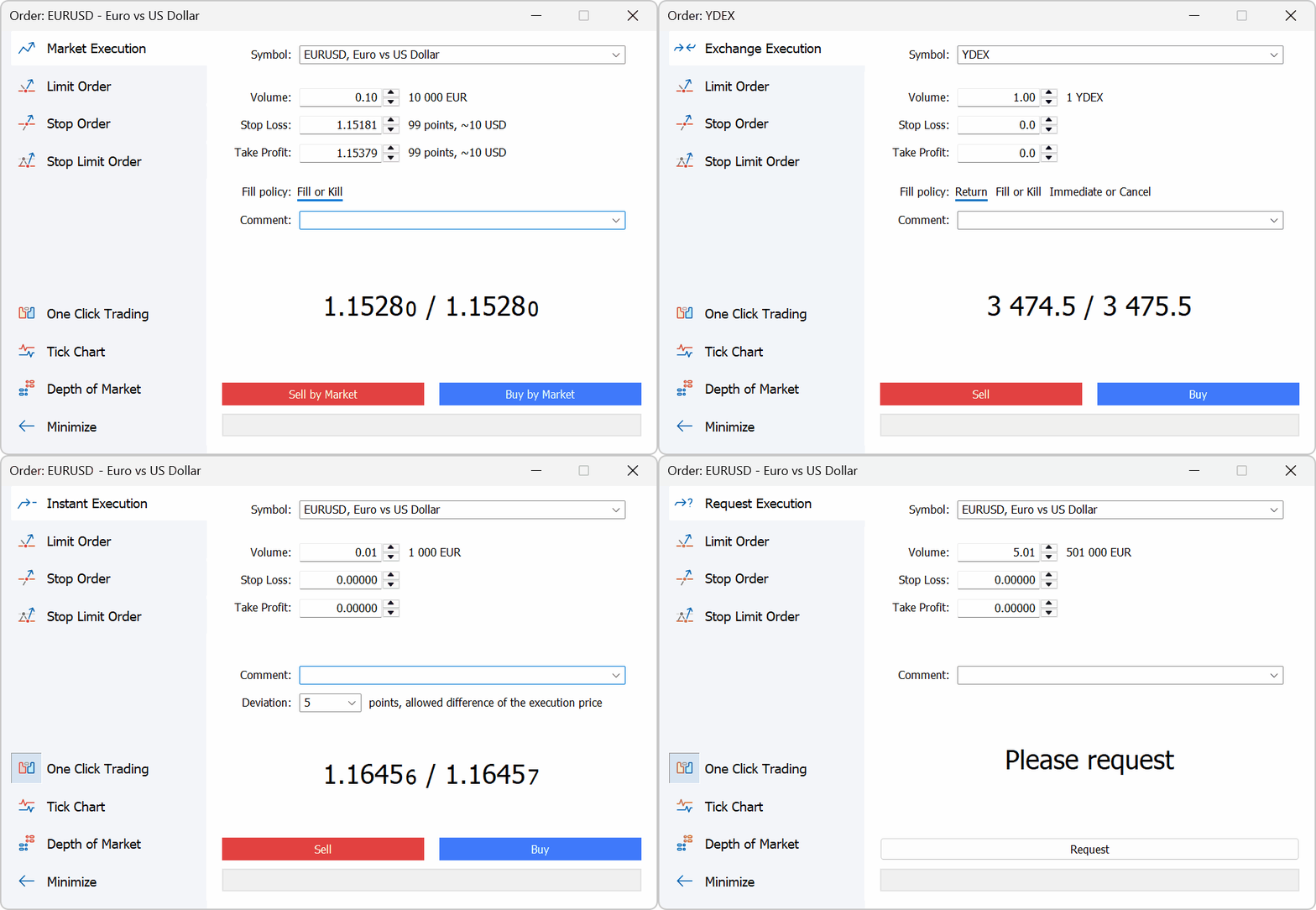
An official MT5 order-window example. The displayed symbol, volume, prices, fill policy and available controls are illustrative and can differ for your account.
Understand the basic order fields
| MT5 field | What it means |
|---|---|
| Symbol | The instrument to which the instruction applies. |
| Type | The execution or order category available for the selected instrument. |
| Volume | The requested trade quantity, commonly displayed in lots. |
| Stop Loss | A protective exit instruction if price moves adversely, subject to execution and instrument rules. |
| Take Profit | An exit instruction intended to close at a specified favorable level, subject to execution rules. |
| Comment | Optional text stored with the request where supported. |
There is no universal beginner volume. The monetary exposure represented by a volume depends on contract size, price, currency conversion and the instrument’s specification. The minimum selectable volume should not be treated as automatically low risk.
Stop Loss and Take Profit fields may reject levels that do not meet the symbol’s minimum distance, price precision or current-market requirements. A stop instruction also does not guarantee an exact fill price during gaps or rapid movement.
Place a basic market order
A market order is intended to execute using available market prices under the applicable execution rules. It does not guarantee the exact price displayed when the button is pressed.
For a first platform exercise, use an appropriate demo environment and follow this sequence:
- Confirm the account number, server and demo status.
- Select the exact symbol and review its specification.
- Open New Order.
- Recheck Symbol in the ticket.
- Enter a permitted Volume based on the exercise—not a copied example.
- Review the execution type and any displayed fill policy.
- Enter Stop Loss and Take Profit only if appropriate and permitted for the exercise.
- Check the selected direction and all fields again.
- Use the displayed Buy or Sell control to submit the request.
- Read the platform response and verify the result in Toolbox before clicking again.
The platform may return an execution, rejection or another status depending on the request and account conditions. Repeatedly pressing an order button because the first result is unclear can create unintended exposure.
Market orders and pending orders
MT5 divides trading instructions into market and pending orders, with exact availability controlled by the account, symbol and server.
A market order requests a transaction using prices available under the applicable execution mode. Price can change between submission and execution.
A pending order is stored as an instruction intended to activate when specified conditions are reached. Common MT5 pending types include Buy Limit, Sell Limit, Buy Stop and Sell Stop. Stop-limit types may also be available. Each behaves differently, but a pending price is not a promise that the order will ultimately fill.
For a beginner, the important distinction is status: a pending order is an instruction waiting for its conditions, while a position represents current market exposure resulting from executed deals. MetaTrader’s official trading principles explain the relationship between orders, deals and positions.
Modify or close an open position
Open View > Toolbox and select the Trade tab. This area shows open positions and pending orders for the connected account.
To change protective levels where supported:
- Right-click the intended position in Trade.
- Choose the available Modify or Delete command.
- Enter the revised Stop Loss or Take Profit values.
- Submit the change.
- Confirm that the new levels appear on the correct position.
To close a position:
- Locate the exact position in Toolbox > Trade.
- Right-click and choose Close Position.
- Verify the symbol, position and closing volume.
- Submit the closing instruction.
- Confirm that the position disappeared or its volume was reduced, then review History.
Exact behavior can differ between netting and hedging accounts. On a hedging account, submitting an opposite order may create a separate opposite position rather than close the original one. Using Close Position makes the intended action clearer. MetaTrader’s position-management documentation covers the current platform controls in detail.
Check trade and account information
Toolbox provides three especially useful tabs for beginners:
- Trade: current positions, pending orders and key account figures.
- History: completed orders, deals and account activity for the selected period.
- Journal: platform, connection and trading-operation messages.
After every practice action, confirm the actual result. Check the executed volume and fill price rather than assuming the original request was filled exactly as entered. Verify that any intended Stop Loss or Take Profit is attached to the correct position.
If the outcome is unclear, inspect the Journal message before submitting another instruction. When contacting support, provide the terminal build, device, timestamp, server and a sanitized message. Never share a password or verification code.
Common MT5 beginner problems
| Problem | What to check first |
|---|---|
| Login does not work | Confirm the account number, trading password, exact server and that the credentials belong to MT5. |
| Connected with no trading access | Check whether an investor/read-only password was used and whether the account is active for trading. |
| Symbol is missing | Open Market Watch’s Symbols list and confirm that the instrument is available for the account. |
| “Market closed” or inactive prices | Check the instrument’s trading session and current server time. |
| Order control is unavailable | Verify account permissions, market status, selected symbol and execution configuration. |
| Volume is rejected | Check minimum volume, maximum volume and volume step in the symbol specification. |
| Insufficient margin | Review the requested volume, available free margin and applicable margin requirement. Do not assume more leverage is the correct solution. |
| Stop Loss or Take Profit is rejected | Check direction, price precision, current price and the symbol’s minimum stop distance. |
| Platform appears connected but quotes are stale | Check the latest quote time, symbol session, connection indicator and Journal messages. |
Avoid disabling firewall or antivirus protection globally as a troubleshooting shortcut. If connection problems continue, use official support and provide enough technical context to investigate the issue safely.
MT5 beginner FAQs
How do I use MetaTrader 5 for the first time?
Install MT5 from a verified source, log in with the account number, password and correct server, open Market Watch, select an available instrument, open its chart and learn the New Order and Toolbox workflows in a suitable demo environment before considering live use.
How do I log into MetaTrader 5?
On desktop, select File > Login to Trade Account, then enter the broker-issued login number, trading password and assigned server. Investor credentials can provide read-only access and may not permit orders.
How do I open a chart in MT5?
Open Market Watch, right-click the required available symbol and choose Chart Window. Confirm the symbol and timeframe in the chart header before using it.
How do I change timeframes in MT5?
Use the timeframe toolbar or the chart’s timeframe menu. The selected timeframe controls the interval represented by each bar or candle; it does not determine how long a position stays open.
How do I place an order on MT5?
Select the intended symbol and open New Order through Market Watch, the Tools menu, toolbar or F9. Review Symbol, Type, Volume, Stop Loss and Take Profit, then use the displayed Buy or Sell control and confirm the response in Toolbox.
How do I close a trade on MT5?
Open Toolbox > Trade, locate the exact position, right-click it and choose Close Position. Verify the position and closing volume, submit the instruction, then confirm the result in Trade and History.
Can I use MT5 on desktop and mobile?
Yes, MT5 is available on desktop and mobile, but menus and workflows differ. Grand Markets provides a separate MT5 mobile page for current iOS and Android access.
Continue with the verified Grand Markets MT5 route
The practical sequence is straightforward: install the correct terminal, connect the correct account and server, understand the workspace, verify the instrument, review the order ticket and confirm every result in Toolbox.
Already have your account details? Download MT5 for Windows or macOS through Grand Markets. If you are new to Grand Markets, create an account first to obtain the credentials needed to connect the platform. Account, instrument and platform conditions can vary, so use the details assigned to your own account rather than copying values from examples or screenshots.
This guide explains platform operation for educational purposes. It does not recommend an instrument, direction, order size or trading strategy. Forex and CFD trading involve substantial risk of loss.

Disclaimer:
This content does not constitute any offer, solicitation or advice. You should always seek independent professional advice before making any investment decision. Please note that Grand Markets may restrict or prohibit some or all services to users from restricted regions. Please read the User Agreement for more information.