
MT5 includes built-in technical indicators, and compatible custom indicators can be installed on the desktop platform. This guide explains how to add, configure, modify and remove indicators in MetaTrader 5, with the main steps based on the Windows desktop version.
An indicator analyses market data and displays output on a chart. It does not place or manage trades merely because it is attached. You can complete every procedure below on a chart without opening a live position.
Before you add an indicator in MT5
This guide assumes that MT5 is installed and a chart is already open. If you still need the desktop terminal, review the current Grand Markets MetaTrader 5 page.
The available indicator workflow depends on the platform:
| Environment | Built-in indicators | Custom indicator installation |
|---|---|---|
| Windows desktop | Available | Supported for compatible MQL5 programs |
| Android, iPhone and iPad | Available | The desktop file-installation workflow does not apply |
| MT5 Web | Available | Use the indicators provided by the web interface |
On desktop, first distinguish the program type and the action you intend to take. An indicator performs analysis. An Expert Advisor, or EA, can perform trading operations when permitted. A script runs a particular action. These are separate MQL5 program types even when their files share an .ex5 extension.
| Action | What it does |
|---|---|
| Install | Makes a custom program available to that desktop terminal |
| Attach | Applies an available indicator to one chart |
| Configure | Changes the attached instance’s inputs or appearance |
| Remove from chart | Deletes an attached instance but leaves custom files installed |
| Delete custom files | Removes the identified program files from the terminal’s data folder |
Before proceeding, confirm the intended symbol and timeframe, identify whether the indicator is built in or custom, and verify that any downloaded file is specifically compatible with MT5.
How to add built-in indicators in MT5
MT5 includes built-in indicators that can be attached without downloading files.
- Activate the chart where you want the indicator to appear.
- Select Insert > Indicators, then choose the relevant category and indicator.
- Alternatively, select View > Navigator or press Ctrl+N. Expand Indicators, then drag the chosen item onto the chart.
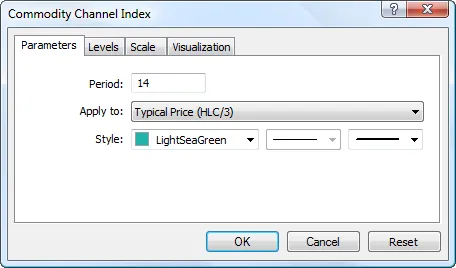
- Review the available calculation and appearance settings.
- Click OK.
- Right-click the chart and select Indicator List, or press Ctrl+I, to confirm that the indicator is attached.
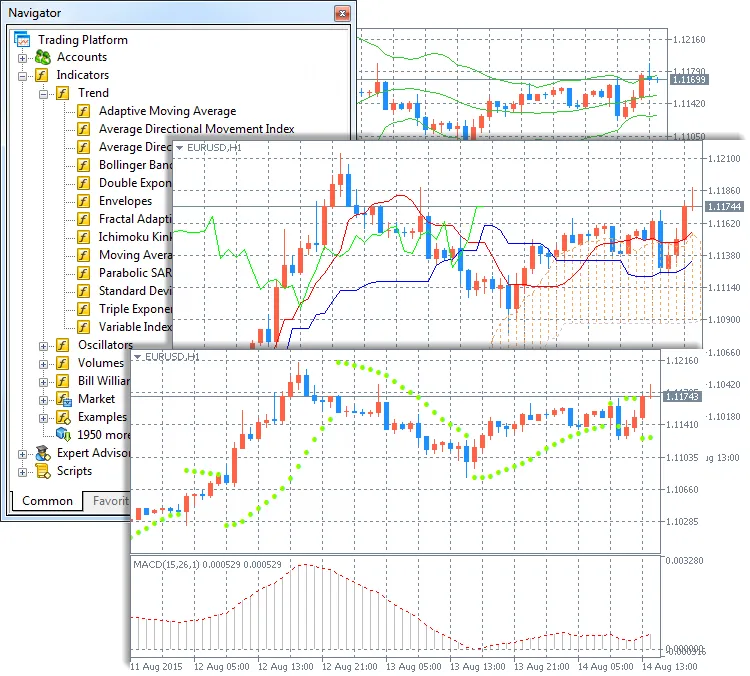
An overlay such as a moving average appears in the main price-chart window. An oscillator such as RSI usually appears in a separate subwindow. Check both locations before treating an attached indicator as missing.
The settings shown depend on the indicator. Available tabs may include Parameters, Colors, Levels and Visualization. Not every indicator exposes every control. The official MetaTrader 5 indicator instructions document the attachment and configuration routes.
How to install a custom indicator in MT5
Custom indicators require an additional installation step. Obtain files only from an identifiable developer or traceable distribution source, and read the package instructions, licence and dependency requirements before opening executable files.
Check the file type
| File extension | Meaning | What to do |
|---|---|---|
.mq5 |
MQL5 source code | Compile it if a usable executable is not supplied |
.ex5 |
Compiled MQL5 program | Confirm that it is an indicator and follow its installation instructions |
.mq4 |
MQL4 source code | Obtain a compatible MT5 version |
.ex4 |
Compiled MT4 program | Obtain a compatible MT5 version |
An .ex5 extension alone does not prove that a file is an indicator; EAs and scripts can also use compiled MQL5 files. Check the developer’s description before placing a file in an indicator folder. Renaming an .mq4 or .ex4 file does not convert it for MT5.
Install a manually distributed custom indicator
- Open the MT5 terminal where the indicator must run.
- Select File > Open Data Folder.
- Open MQL5, then Indicators.
- Copy the indicator files into that folder, preserving any subfolder structure specified by the developer.
- Place libraries, includes or data files only in the locations given in the package instructions. Do not place every package file in Indicators.
- If the package supplies only
.mq5source, open the main file in MetaEditor and select Compile, or press F7. - Resolve compilation errors before continuing.
- Return to MT5, right-click Indicators in Navigator, and select Refresh. Restart MT5 if the program still does not appear after checking the folder and compilation result.
- Drag the custom indicator from Navigator onto the intended chart.
- Review its settings, click OK, and confirm that it appears in Indicator List.
Use File > Open Data Folder rather than guessing a Windows installation path. Separate MT5 installations can use different data directories. The official MT5 files and folders reference identifies MQL5\Indicators as the folder for custom indicators.
Successful compilation means that MT5 produced an executable. It does not establish that the code is safe, reliable or suitable for a particular use.
Install an indicator through Market
Keep Market-managed installation separate from manual file copying:
- Open Market using the route shown in your MT5 build.
- Select an indicator and review its description, dependencies, licence and account requirements.
- Complete the displayed download or purchase process.
- Locate the installed indicator in Navigator and attach it to a test chart.
Use the authorised account and installation process for licensed products. Copying files is not a substitute for a valid licence or activation.
Apply sensible permission limits
- Do not enable Algo Trading merely to make an ordinary moving average or RSI appear. It is not an indicator-visibility switch.
- Leave DLL imports disabled unless the indicator has a documented requirement and you trust its publisher.
- Do not disable antivirus or operating-system protections as a routine installation step.
- Stop if a package requests unexplained permissions or undocumented dependencies.
How to configure and use an MT5 indicator
When you attach an indicator, review the available calculation inputs and display settings before relying on its output.
- Confirm the chart symbol and timeframe.
- Review the period and other calculation inputs. For an ordinary chart-based calculation, a 20-period setting on an hourly chart uses 20 hourly bars; on a daily chart, it uses 20 daily bars.
- Check the calculation method, applied price and any additional parameters exposed by that indicator.
- If it is a multi-timeframe custom indicator, confirm whether it calculates from a timeframe different from the visible chart.
- Choose readable colours and line widths.
- Open Visualization where available and confirm that the indicator is enabled for the intended timeframe.
- Click OK, then check the main chart and any separate indicator subwindow.
Modify an indicator already attached to a chart
- Activate the chart.
- Right-click and select Indicator List, or press Ctrl+I.
- Select the intended indicator instance.
- Click Properties.
- Change the available parameters, colours, levels or visualization settings.
- Click OK and verify the result.
If the chart contains two instances with the same name, inspect their properties before changing or deleting either one.
Verify what the indicator is displaying
Indicators can appear in the main chart window or a separate subwindow. Their values can also change while the current candle is still forming. If you need a completed-bar observation, wait until that candle closes before recording the value.
For an OTC Forex feed, tick volume describes tick activity during an interval; it is not total global Forex turnover. Data definitions and calculation methods can also differ between platforms or feeds, so avoid assuming that similarly named indicators always produce identical output.
Save the chart as a template
After reviewing the setup, open the chart’s context menu, select the template controls and save the template with a descriptive name. When applying it to another chart, verify the new symbol, timeframe and indicator settings. A template can restore an attached indicator while its program files remain available.
The official MT5 template instructions explain the platform’s saved-chart configuration behaviour.
How to remove indicators from MT5
Removing an indicator from a chart and deleting a custom installation are different actions.
Remove an indicator from one chart
- Activate the chart containing the indicator.
- Right-click the chart and select Indicator List, or press Ctrl+I.
- Select the intended indicator instance.
- Click Delete.
- Confirm that the intended output has disappeared.
You can also use Delete Indicator from the indicator’s chart context menu where available. Use Indicator List, not Objects List: drawing objects and indicator instances are separate chart components.
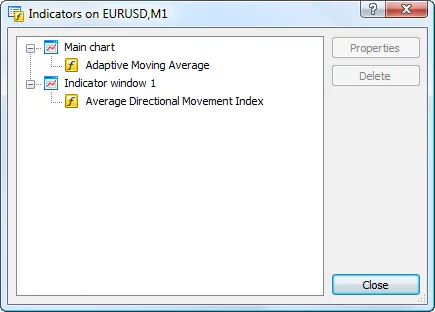
Removing an instance does not delete the custom program files or remove the same indicator from other charts. The official chart-item management reference documents the Properties and Delete controls.
Delete manually installed custom indicator files
Use this procedure only when you intend to remove the installation itself:
- Record the indicator name and back up any source files or settings that must be retained.
- Remove its instances from open charts.
- Select File > Open Data Folder in the relevant MT5 terminal.
- Open MQL5 > Indicators.
- Identify the indicator’s own files and folder.
- Remove its
.ex5executable. Remove its.mq5source only if full local removal is intended. - Refresh Navigator or restart MT5.
- Confirm that the program is no longer listed.
Do not delete shared libraries or include files merely because the removed indicator used them; another program may depend on those files. Use the distribution-specific controls for Market-managed products.
If a saved template still includes the indicator, revise that template separately. Deleting a custom file can also affect charts or templates that expect the program to remain available.
MT5 indicators on mobile and web
The mobile apps provide built-in indicators through their chart controls, but the desktop MQL5\Indicators file workflow does not apply.
On Android, open the chart and use the indicator control in the top panel or radial menu. Add an indicator to the main chart or the relevant subwindow, then reopen indicator management to modify or remove it.
On iPhone or iPad, open Indicators from the chart controls, choose the chart window, select an indicator and configure it. To remove one, use the modification controls shown in the Indicators screen. Control placement can differ between iPhone and iPad layouts.
On MT5 Web, use the indicators exposed by the browser interface rather than desktop folders or keyboard shortcuts.
Troubleshoot MT5 indicators
Start with the symptom and use the least disruptive check first.
| Symptom | Check | Corrective action |
|---|---|---|
| Indicator is missing from Navigator | The active terminal’s data folder | Place the files in that terminal’s MQL5\Indicators directory and refresh |
.mq5 source is present but the indicator is unavailable |
MetaEditor compilation result | Compile the main source file and resolve errors |
| An MT4 file will not load | File extension and product description | Obtain a compatible MT5 version |
| Compilation fails | The first relevant compiler error and documented dependencies | Restore the required package files or contact the developer |
| The indicator is listed but invisible | Chart window, colours, scale and visualization settings | Restore readable settings and inspect the expected output location |
| Output is blank or incomplete | Price history, required symbols and runtime messages | Allow data to load and verify the indicator’s input requirements |
| A licensed product fails after a system change | Purchase account and activation status | Use the authorised reinstallation or support route |
| The indicator returns after applying a template | Saved template contents | Remove it and save a revised template |
| MT5 becomes slow | Recently attached or calculation-heavy indicators | Remove suspect instances individually on a test chart |
To isolate a loading problem, open a clean chart with available price data. Attach one built-in indicator and confirm that it displays. Remove it, attach the affected custom indicator alone, and record any initialization, dependency or licensing message. Change one setting at a time.
Before reinstalling the terminal, check the active data folder, MT5 compatibility, compilation result and chart attachment. If you need support, provide the operating system and MT5 build, indicator name and source, symbol and timeframe, installation method, exact error and reproducible steps. Conceal account identifiers and private paths in screenshots.
MT5 indicators FAQ
How do I add a built-in indicator to MT5?
Activate the chart, select Insert > Indicators, choose the indicator, review its settings and click OK. You can also drag an indicator from Navigator > Indicators onto the chart.
How do I install a custom indicator in MT5?
On Windows desktop, select File > Open Data Folder, open MQL5 > Indicators, copy the compatible indicator files into the correct location, compile .mq5 source when required, refresh Navigator and attach the indicator to a chart.
Why is my custom indicator not showing in MT5?
Common causes include using the wrong terminal data folder, an uncompiled .mq5 file, compilation errors, missing dependencies, an MT4-only file, hidden visualization settings or output appearing in a separate subwindow.
How do I remove an indicator from an MT5 chart?
Press Ctrl+I or open Indicator List, select the indicator and click Delete. This removes that chart instance without deleting manually installed files.
Can I use an MT4 indicator in MT5?
Not automatically. MT4 uses MQL4 files such as .mq4 and .ex4, while MT5 uses MQL5 files such as .mq5 and .ex5. Renaming the extension does not convert the program; obtain an MT5 release or a proper source adaptation.
Can I install custom MT5 indicators on a phone?
The desktop custom-file workflow does not apply to the standard Android, iPhone or iPad apps. Use the built-in indicators provided by the mobile app and keep custom installation on a supported desktop environment.
Is an MT5 indicator the same as an Expert Advisor?
No. An indicator analyses data and displays output. An Expert Advisor can perform trading operations when its permissions and logic allow it. Confirm the program type before installing an .ex5 file.
Use MT5 through Grand Markets
If you need the desktop platform, review and download it through the Grand Markets MT5 page. If you do not yet have Grand Markets account credentials, you can create a Grand Markets account before connecting the platform.
Indicators do not guarantee profitable trades. Treat platform setup and indicator display as separate from trade selection, position sizing and leveraged-trading risk.

Disclaimer:
This content does not constitute any offer, solicitation or advice. You should always seek independent professional advice before making any investment decision. Please note that Grand Markets may restrict or prohibit some or all services to users from restricted regions. Please read the User Agreement for more information.