
MT5 mobile and desktop both provide access to charts, account information and manual trading functions, but they are designed for different working conditions. Desktop offers a larger, more flexible workspace and supports custom MQL5 tools, Expert Advisors and strategy testing. Mobile prioritizes convenient access, monitoring and manual trade management away from a computer.
Many traders do not need to choose only one. They can use desktop for deeper analysis and platform configuration, then connect to the same supported trading account on mobile for monitoring and manual management while away from the workstation.
Platform features, available instruments and order modes can depend on the broker, account, server, operating system and application version. The comparison below therefore focuses on documented MT5 platform capabilities rather than assuming that every broker configuration is identical.
MT5 mobile vs desktop at a glance
The main differences are workspace size, support for custom files and automated programs, and portability. Core manual trading functions are available on both environments when supported by the connected account.
| Feature | MT5 Desktop | MT5 Mobile | Practical implication |
|---|---|---|---|
| Account access | Yes | Yes | The same supported MT5 account can normally be accessed with the correct login, password and server |
| Quotes and symbols | Yes | Yes | Both can monitor available instruments and prices |
| Interactive charts | Yes | Yes | Mobile supports chart analysis; desktop provides more visible workspace |
| Multiple-chart workflow | Multiple chart windows and layouts | Constrained by mobile screen and app navigation | Desktop is more practical for side-by-side comparison |
| Built-in indicators | Yes | Yes | Both support technical indicators, although interface and availability can differ by version |
| Custom indicators | Compatible MQL5 indicators can be installed | No standard desktop-style custom-file workflow | Custom-file users need the desktop environment |
| Expert Advisors | Supported when configured | No equivalent local EA execution environment | Automated programs run in the desktop ecosystem, not inside the standard mobile app |
| Strategy Tester | Available | Not available as a mobile function | Testing and optimization are desktop tasks |
| Manual order entry | Yes | Yes | Both support core manual trading workflows subject to account configuration |
| Position and order management | Yes | Yes | Mobile is useful for focused changes away from a computer |
| Templates and profiles | Desktop chart templates and profiles | No equivalent desktop file-based workflow | Complex workspace reuse is a desktop strength |
| Push notifications | Can send configured notifications | Can receive notifications | Desktop and mobile can form a useful alert workflow |
| File access and MQL5 development | Available through desktop tools | Not a standard mobile workflow | Development, compilation and file management belong on desktop |
| Mobility | Requires a running computer or remote environment | Designed for phones and tablets | Mobile is more convenient when travelling or away from a desk |
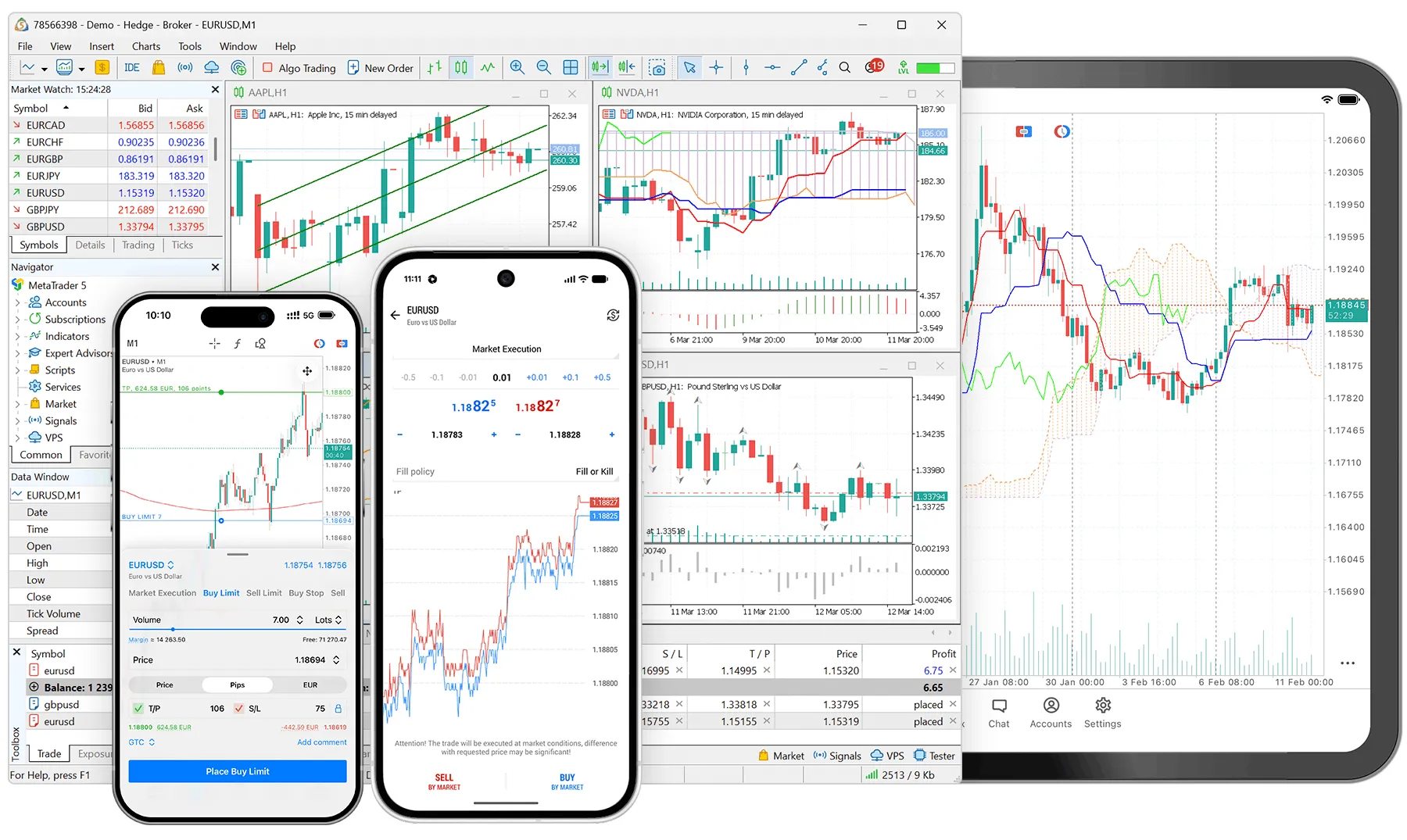
The official MetaTrader 5 mobile documentation confirms that the mobile platforms can manage a trading account, display charts, use technical indicators and analytical objects, place supported orders, show account history, and receive platform messages and notifications.
The desktop terminal adds the broader workspace and MQL5 environment. It is the documented platform for Expert Advisors, scripts, custom indicators, MetaEditor and Strategy Tester workflows.
Charting and workspace differences
MT5 mobile is a capable charting environment rather than a balance-only companion. Users can review live charts, switch among supported timeframes and chart types, apply built-in indicators, add graphical objects and inspect price movement from a phone or tablet.
The practical limitation is usually workspace, not the complete absence of analysis tools. A phone displays less information at once, and touch controls can make detailed drawing or precise object placement less convenient. Switching between symbols and timeframes is also more sequential than viewing several charts together.
Desktop is better suited to workflows that require context across multiple instruments. The official desktop chart documentation states that the platform can keep multiple charts open, arrange chart windows and detach charts from the main terminal. This supports side-by-side market comparison and, where the computer setup allows it, multi-monitor use.
Desktop may therefore be more practical for:
- comparing several symbols or timeframes simultaneously;
- keeping Market Watch, charts and account information visible together;
- applying detailed drawings with keyboard and mouse controls;
- reusing chart templates and profiles;
- maintaining a structured workspace for longer analysis sessions.
Mobile may be more practical for:
- checking one chart quickly;
- reviewing a watchlist while away from a computer;
- confirming the current state of a position or pending order;
- responding to a configured alert;
- making a focused manual change without opening the desktop terminal.
A tablet can provide more screen space than a phone, but it still uses the mobile application environment. A larger mobile display does not add desktop file access, Expert Advisors or Strategy Tester functionality.
Order placement and trade management
Both MT5 mobile and desktop support core manual trading tasks where those functions are available for the connected account. These can include market orders, pending orders, position review, order modification, Stop Loss and Take Profit controls, and account history.
The difference is often usability rather than availability. Mobile can be convenient when the user needs to inspect an open position or make one clear manual change. Desktop gives more room to compare the order ticket with charts, open positions and other account information before acting.
Desktop may be more efficient when a trader is:
- reviewing several open positions at once;
- comparing order details against multiple charts;
- managing a larger watchlist;
- making changes that require broader chart context;
- checking platform logs or detailed account panels.
Mobile may be sufficient when the task is:
- checking whether an order or position is still active;
- modifying an eligible Stop Loss or Take Profit;
- closing or reducing an eligible position;
- placing a straightforward manual order;
- reviewing recent trading history.
Neither device type establishes better execution, fills or slippage. Those outcomes can depend on network conditions, the broker’s infrastructure, the account and instrument, market conditions and the specific order. A larger desktop workspace can improve visibility, but it does not automatically make an order execute faster.
Indicators, custom tools and automation
Both versions provide built-in technical indicators, but desktop supports a wider tool-management environment.
On desktop, compatible custom indicators can be placed in the terminal’s MQL5 file structure and managed through Navigator. The mobile apps do not use that standard desktop custom-file installation workflow. Readers who need the installation steps should use the dedicated MT5 indicator guide once it is available, rather than treating the mobile app like a desktop file system.
The same boundary applies to automated trading. Desktop MT5 supports Expert Advisors and other MQL5 programs when they are properly installed, configured and permitted. The standard mobile application can display the resulting account state and receive notifications, but it is not the local execution environment for attaching and running an EA.
MetaTrader’s Strategy Tester documentation also places historical testing and optimization in the desktop platform. Mobile does not provide an equivalent testing environment.
This leads to a clear task-based distinction:
- Use desktop for compatible custom indicators, Expert Advisors, MQL5 development and strategy testing.
- Use mobile for built-in indicators, manual chart review, account monitoring and manual trade management.
- Use both when desktop tools perform the configured work and mobile provides visibility away from the computer.
Backtests and indicator output still require judgment. Historical results do not guarantee future performance, and installing a custom tool does not establish that it is safe or reliable.
Notifications, connectivity and continuous use
Mobile is particularly useful as a notification and monitoring endpoint. The desktop platform can send configured push notifications to a mobile MetaQuotes ID, while the mobile app can receive and retain those messages. The official notification settings explain this desktop-to-mobile configuration.
Notifications can help a user become aware of an account event or an alert without watching a desktop chart continuously. They do not guarantee immediate action: delivery still depends on internet access, device settings and operating-system behaviour.
Each environment has practical dependencies:
| Environment | Important dependencies |
|---|---|
| Mobile | Battery, mobile or Wi-Fi connection, notification permissions, operating-system background behaviour and app state |
| Desktop | Computer uptime, internet connection, terminal state, operating-system state and any configured automation environment |
For manual use, an interrupted connection can affect either device. After submitting or changing an order, check the confirmed order or position state rather than assuming that the request completed.
For automation, continuity matters more. Closing the desktop terminal or turning off the computer can interrupt locally running EAs. A separate hosted environment may be relevant to some users, but that is a distinct setup decision rather than a capability supplied by the mobile app.
Can you use the same MT5 account on mobile and desktop?
Usually, yes. If the broker supports that account on both MT5 environments, the user can connect with the same account login, password and server details. The platforms then display the state of the same trading account rather than creating a separate mobile account and a separate desktop account.
This means that positions, pending orders, balance and trading history are associated with the connected account. A position opened on desktop can normally be viewed and managed from mobile when both devices are logged into the same account with suitable permissions.
There are still important distinctions:
- Chart layouts and local settings do not necessarily reproduce identically across devices.
- A custom desktop indicator does not become installed on the mobile app merely because both use the same account.
- An EA running on desktop does not run locally on the phone, although its account activity may be visible there.
- Logging into the wrong broker server can make an account appear unavailable even when the credentials are otherwise correct.
- Investor or read-only credentials do not provide the same permissions as the main trading password.
Using more than one device does not duplicate positions. Each connected platform is viewing and, where permitted, managing the same server-side account state.
Which MT5 version fits your workflow?
There is no universal winner. The more useful question is which environment fits the task you perform most often.
Use MT5 desktop if you mainly need
- multiple charts visible at once;
- detailed technical analysis on a larger workspace;
- compatible custom indicators;
- Expert Advisors or scripts;
- MetaEditor and MQL5 file access;
- Strategy Tester and optimization tools;
- chart templates, profiles or more complex workspace organization;
- detailed management of several instruments or positions.
Use MT5 mobile if you mainly need
- account access away from a computer;
- quick chart and watchlist checks;
- built-in indicators and graphical tools;
- manual order placement and position management;
- account history and status review;
- push notifications and alerts;
- a portable backup for focused manual tasks.
Use both if you want
- desktop analysis with mobile monitoring;
- desktop automation with mobile visibility into account activity;
- alerts on a phone while the main workspace remains on desktop;
- access to the same supported account from different locations;
- a larger workstation for preparation and a portable interface for follow-up.
The combined approach is often the most practical because it assigns each environment the task it handles well instead of asking one device to reproduce every function of the other.
A practical desktop-and-mobile workflow
A straightforward combined workflow can look like this:
- Use desktop to review instruments, charts and broader account context.
- Configure the required built-in or custom tools on desktop.
- Set alerts or push notifications where appropriate.
- Connect the supported trading account to the mobile app using the correct login and server.
- Use mobile to monitor positions, review alerts and make focused manual changes away from the workstation.
- Return to desktop when a decision requires deeper chart comparison, custom tools, platform logs or several account panels.
This is only a workflow example. It does not mean that every alert requires a trade or that a mobile response improves the trading result. Users should confirm the current account state before acting, especially after a connection interruption or a change made on another device.
Security and setup checks
Download MT5 only through official app stores, MetaTrader sources or a verified broker route. Confirm the broker server before entering credentials, particularly where several similarly named servers appear.
On both desktop and mobile:
- protect the device with a password, PIN or supported biometric control;
- keep the operating system and platform updated;
- avoid saving trading credentials on shared or public devices;
- check notification previews if account privacy matters;
- use the appropriate trading password rather than sharing credentials;
- confirm order and position status after a disrupted connection.
Platform security does not remove trading risk. Device access, account access and leveraged-market exposure are separate issues and should be managed separately.
Choose the Grand Markets MT5 route
Readers who prefer the larger workspace, custom tools and automation environment can review Grand Markets MT5 for desktop. Readers who prioritize portable monitoring and manual management can use the Grand Markets MT5 mobile route.
Using both can be practical when the same Grand Markets account and server support desktop and mobile access. Confirm the current platform and account conditions before downloading or connecting.
If you do not yet have Grand Markets account credentials, create a Grand Markets account first, then use the login and server details provided for your account to connect the desktop or mobile version.
MT5 mobile vs desktop FAQs
Is MT5 mobile the same as desktop?
No. Both provide charts, account access and manual trading functions, but desktop adds the larger multi-chart workspace, MQL5 file workflows, Expert Advisors, custom indicators and Strategy Tester. Mobile focuses on portable access and manual account management.
Can I use the same MT5 account on mobile and desktop?
Usually, yes, when the broker supports that account on both environments. Use the same MT5 login and correct broker server. Both devices then show the same account state rather than separate positions.
Can I install custom indicators on MT5 mobile?
The standard mobile apps do not use the desktop MQL5\Indicators file-installation workflow. Mobile provides built-in indicators, while compatible custom-file installation belongs to the desktop environment.
Can I run Expert Advisors on MT5 mobile?
Not as a local mobile workflow. Expert Advisors run in the desktop MT5 ecosystem or another properly configured supported environment. The mobile app can show resulting account activity and receive notifications, but it does not run the EA locally.
Can I place and manage orders on MT5 mobile?
Yes. The official mobile platform supports market and pending orders, account history and position management, subject to the connected broker account, instrument and server configuration.
Should I use MT5 mobile, desktop or both?
Use desktop for multi-chart analysis, custom tools, automation and testing. Use mobile for monitoring, notifications and focused manual management away from a computer. Use both when those tasks form one connected workflow.
MT5 mobile and desktop are complementary rather than interchangeable. Desktop is the more complete environment for workspace-intensive and automated tasks; mobile is the more convenient environment for portable access. The right choice depends on the task, and many users will gain more from combining them than from treating the decision as permanent.

Disclaimer:
This content does not constitute any offer, solicitation or advice. You should always seek independent professional advice before making any investment decision. Please note that Grand Markets may restrict or prohibit some or all services to users from restricted regions. Please read the User Agreement for more information.